
TLCCreative.com Website Refresh
Okay, let’s try this post again as my previous post had a title and no content (oops!).

Our website, https://tlccreative.com, has finally had a content and styling refresh and is now live! This is big news here at TLC Creative as we were ready to launch a website refresh in early 2020, which did not get finalized as the world went into lock down. Then over the next few years we focused on our virtual meeting platform (https://vxpmeeting.com) and that changed the content we wanted for the presentation design side of the company. As of this month, the new website refresh is live and we are excited!
Troy @ TLC
Podcast episode 197

Troy, Nolan and Sandy have some time with Jamie Garroch of BrightCarbon to talk about the PowerPoint Brightslide addin’s features, new additions and other coding projects he and his team are working on. Plus his upcoming sabbatical plans to adventure through many U.S. states in his custom Minion yellow car and trailer.
Listen through your favorite podcast app or direct here
SDI 3-6-20-24G Explained
Presentation work is often intertwined with the AV equipment – software – settings – setup needs. At a recent event a presentation designer asked about the types of SDI and what was needed for the meeting. The simple answer is resolution. The different numbers (3-6-12-24G) relate to the maximum resolution the cable can handle. Of course all the other equipment connected to the cable also needs to be capable of that resolution.

The above image is an SDI cable. It is for the video signal and pretty much the same as an HDMI cable (but more durable and able to be really-really long). SDI is not new, but us presentation people are part of the technology setup conversation more and more. SD SDI was launched back in 1989. The highest performance, and most recent version is 24G SDI which was launched several years ago in 2020. An important note is all SDI cables have the exact same connector. They are not directional (eg. plugging in either end will work). And the thickness is more about the durability than the resolution and quality.
An SDI cable is common on AV setup meetings, and for the most part, presentation computers are going to use HDMI connection. It is generally the equipment beyond the presentation “show” computers where SDI cables are used. On this particular meeting, the video switcher for the breakout room, where the other presentation op was working, was an SDI ATEM Mini Pro. So, SDI cables and connection were part of the setup conversation.
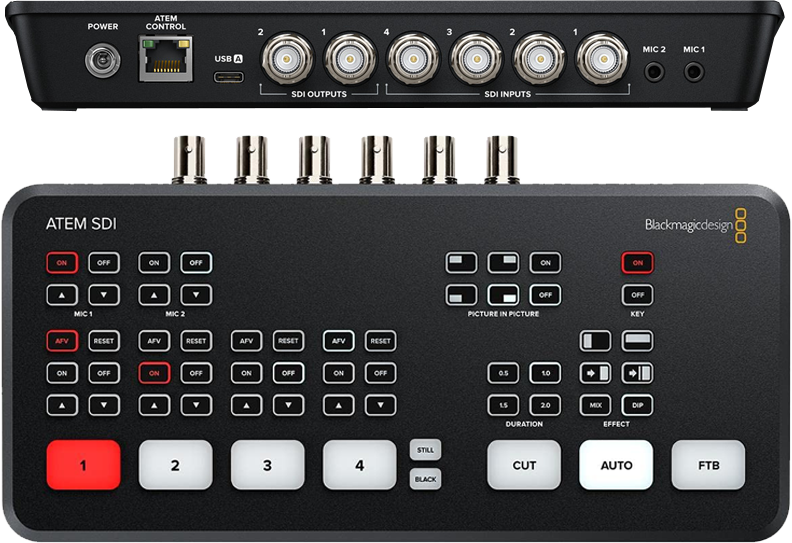
So if you get into a conversation about SDI cables to connect the presentation computer to the AV system, here is a quick definition of the flavors of SDI for reference:
We don’t want to talk about or use SD SDI cables (low res interlaced video) or HD HDI (the first progressive video option, but still too low resolution for everything a presentation computer is used for).

3G means 3 GBs of data per second. In presentation terms this is up to 1080p at 60 Hz.

6G means 6 GBs of data per second. In presentation terms this is up to 4K (2160p) at 30 Hz.

12G is 12 GBs of data per second. In presentation terms this is up to 4K (2160) at 60 Hz.

24G is 24 GBs of data per second. In presentation terms this is up to 8K (7,680 x 4,320) at 60 Hz.
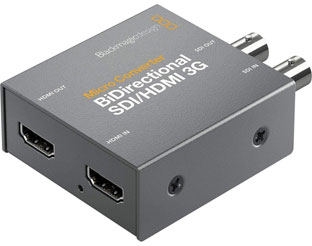
Last, for this meeting, there was the question of how does the HDMI show computer connect to the SDI cable? The answer is an HDMI-to-SDI converter. TLC Creative uses these Blackmagic Bidirectional Converters (meaning they can convert HDMI-to-SDI or SDI-to-HDMI).
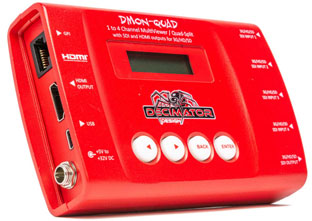
The AV production company standard equipment pack is generally the more versatile (and costly) Decimator HDMI-to-SDI converter.
There are other differences between the 3-6-12-24G protocols, but for presentation needs, we are good to know how each relates to resolution.
Troy @ TLC
Mute Computer System Sounds
Here is the scenario:
- Your computer with the presentation is connected to the meeting AV system
- Then you need to copy a new presentation file to the computer. When the USB drive is inserted the entire room hears the “bing-bing” chime of a new device added to the computer
- At which you groan and say sorry to the hundreds of people ready for the presentation…
Here is the fix:
- Windows has a setting to turn off, or mute, the computer system audio, such as new device sounds!
- Note: this is specific to Microsoft Windows 11. The Mac OS has a similar settings option available.
- Right-click the speaker icon in the lower right of the task bar
- Select SOUND SETTINGS
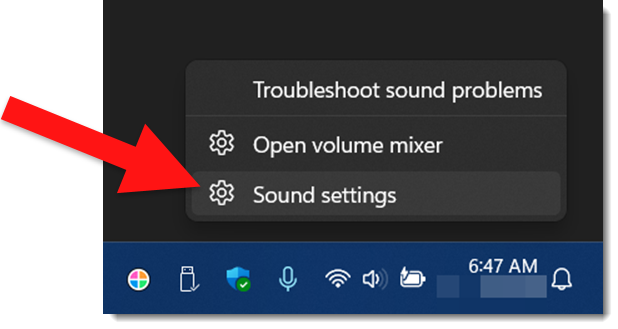
- The Settings, Volume Mixer dialog opens
- Locate SYSTEM SOUNDS in the APPS section
- Either slide the volume to the far left, or click the speaker icon to MUTE
(in this example, the volume slider is at 100%, but the speaker icon was clicked and system sounds are muted)
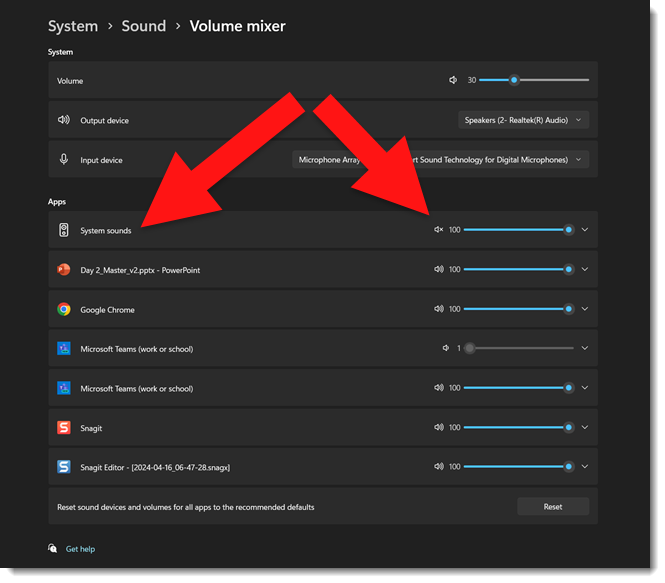
Done. No computer system sounds will be heard from the computer!
Troy @ TLC
Typo in Copilot Generated Image…
In episode 196 of The Presentation Podcast, Rolly Seth, Principal Product Manager for Microsoft Designer, made an interesting comment that written language is challenging for AI image generators. This was a thought-provoking insight, and yesterday it had me thinking about my experience experimenting with Copilot’s image creation. While the tool can proofread my emails and documents, there is no proofreading text in an image it creates.
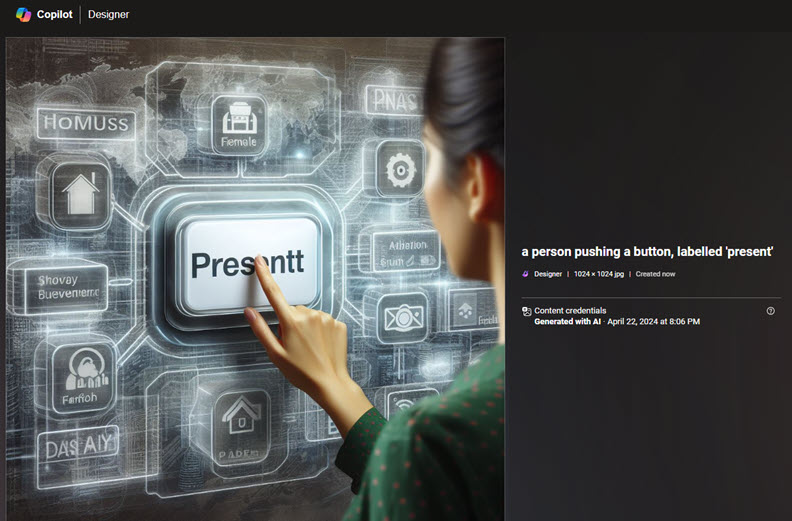
Creative tools have undoubtedly changed, but the AI tools still seem fragile and unreliable at this stage. Even the ability to iterate an image and make adjustments to it is non-existent. While I’m not discounting this amazing tool, it’s not yet ready to be my go-to tool for design work. As example, in this almost great image, the word that is literally spelled out in the prompt was misspelled.
For reference, the prompt that Copilot (ChatGPT-4) used to generate the image was, “Create an image of a person pushing a button, labelled “present””.
Troy @ TLC
No More Google Podcasts…?
Not exactly a presentation topic, but I get so much of my presentation industry news and tech info from podcasts I feel this is a topic worthy of The Presentation Podcast. The Google podcasts app launched in 2018, and was shut down April 2, 2024. In reality, Google Podcasts are not gone, just the app. Podcasts are being integrated into YouTube Music.

If you used the Google Podcasts app, which admittedly I did not, a migration tool has been available to transfer listener podcast subscriptions to YouTube Music (the other note is the migration tool was only available for U.S. users). But now that we are in mid-April, and the reason for this blog post with my calendar reminder to investigate podcasts on YouTube Music, went off, and I have investigated. I am not seeing podcasts in YouTube Music, nor on YouTube and the Podcasts tab. There are several video podcasts, but no audio only podcasts.

The press release I found (thank you Podcast Tonight Newsletter) notes the move is part of a strategy to simplify the podcast listening experience by combining it with music streaming, creating a one-stop audio destination on YouTube Music. Google believes this change will improve podcast discovery, encourage more community interaction, and make switching between audio podcasts and video content easier – an area where Spotify is also making strides. With 23% of weekly podcast users in the U.S preferring YouTube over Google Podcasts’ meager 4%, Google sees this transition as a necessary step to cater to user needs and habits.
Note: my podcast, The Presentation Podcast, is not available on YouTube podcasts yet… adding that to my list of updates to work through!
Troy @ TLC